How to Extract Frames From a Video
A practical guide to capturing one still or ten evenly spaced samples from a video, choosing JPG or PNG, and checking the saved image.
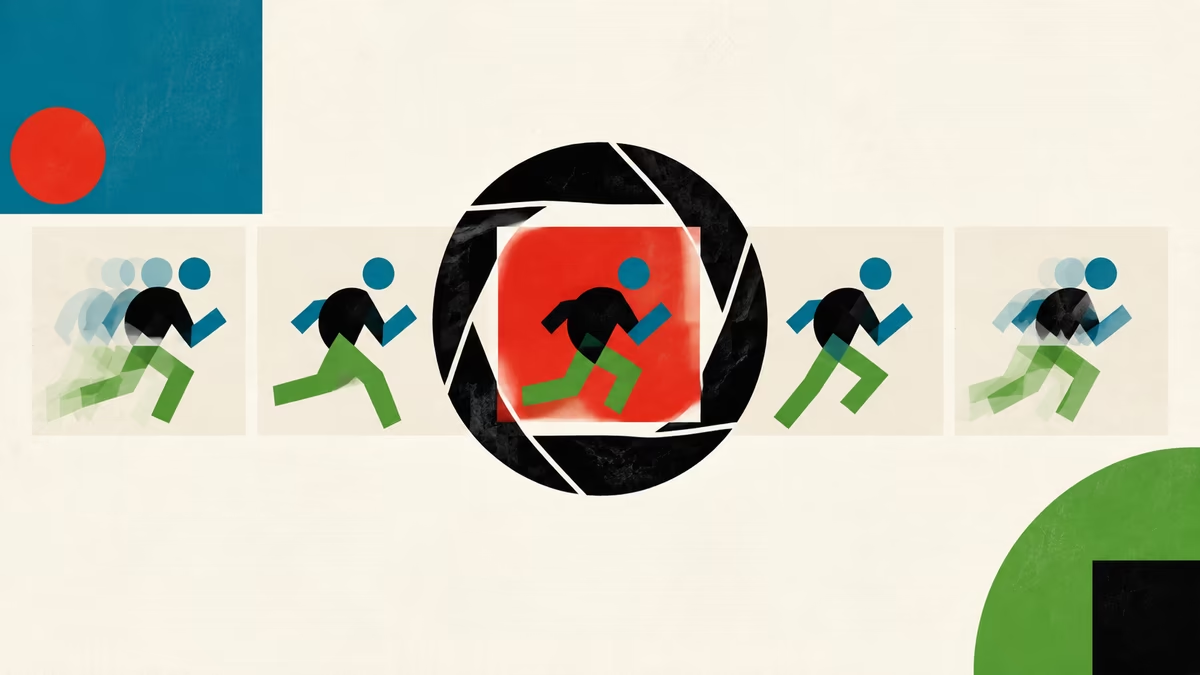
A useful frame is more than a paused preview. It is a decoded image you can save, inspect, and use in another project. The best workflow depends on whether you need one carefully chosen moment or a quick overview of a clip.
Capture one moment
- Open the converter and choose a video file from your device.
- Wait for the preview to load, then play or scrub to the moment you want.
- Use the previous and next controls to make small timing adjustments.
- Choose JPG for photographic footage or PNG for text and graphic edges.
- Capture the frame and open the downloaded file to check its dimensions and appearance.
The frame is drawn from the video element at its decoded dimensions. This avoids the screen-size limitation of a screenshot, although it cannot add detail that is absent from the source video. The step controls move by 1/30 of a second; with variable-frame-rate footage, that step does not necessarily equal one encoded frame.
Sample a clip
The converter also has an option to capture ten frames distributed across the clip. It is useful for a quick visual survey when you do not know where the clearest moment occurs. It is not a custom interval control or a complete frame export. For a storyboard with chosen timestamps, capture individual frames; for every frame or a custom sampling rate, use a dedicated editor or a local command-line workflow.
Choose a format
JPG is usually practical for photographs because it creates smaller files. PNG uses lossless image compression and can preserve crisp text and hard edges, but it may produce larger files. Neither format restores source detail lost to motion blur, focus, compression, or low resolution. PNG output also does not by itself make an ordinary opaque video frame transparent.
When a video will not open
MP4, MOV, and other names describe containers; the video inside still needs a codec supported by the browser and operating system. If the preview stays blank or fails to seek, try the original file in an up-to-date browser, or export a browser-compatible copy from a video editor. Re-encoding can change quality, so keep the original.
For the cleanest still, use the original video file rather than a copy sent through a service that may recompress it. Pause near the desired moment, step through nearby positions, then compare the downloaded image at its actual size. This simple check catches blur and unexpected color changes before you use the frame elsewhere.
by Video to Image